Why Social Media Matters for Vacation Rental Hosts
Airbnb charges hosts 3–5% per booking and guests another 10–14%. Across five bookings a year at a $250 average nightly rate for a 4-night stay, that's over $700 in platform fees — just for the privilege of being discovered. Every direct booking you earn puts that money back in your pocket.
Social media is the most cost-effective way to build a direct booking channel. But unlike a hotel with a marketing team, most vacation rental hosts manage everything themselves — cleaning schedules, guest communication, maintenance, accounting, and yes, marketing. There are only so many hours in the day.
The good news: the most powerful content you can post already writes itself. Your guests are generating it every time they leave a 5-star review. Those reviews — turned into professional social posts — build the kind of trust that moves people from "maybe someday" to "I'm booking this."
3–6 extra direct bookings
What consistent review posting drives per year for the average host
~2 hours saved per week
Time automation returns to hosts who were managing social manually
15–20% OTA commission
What you keep on every booking that comes through your direct site
The catch is that getting automation to work requires understanding how Meta (the company behind Facebook and Instagram) structures its accounts. It's not intuitive. Hosts run into the same wall over and over — and usually blame the tool when the real issue is a configuration step they didn't know about.
Understanding Meta's Account Structure
Before any automation tool can post to your Facebook or Instagram, you need to understand how Meta has organized its products. There are three separate account types that need to be in the right relationship with each other.
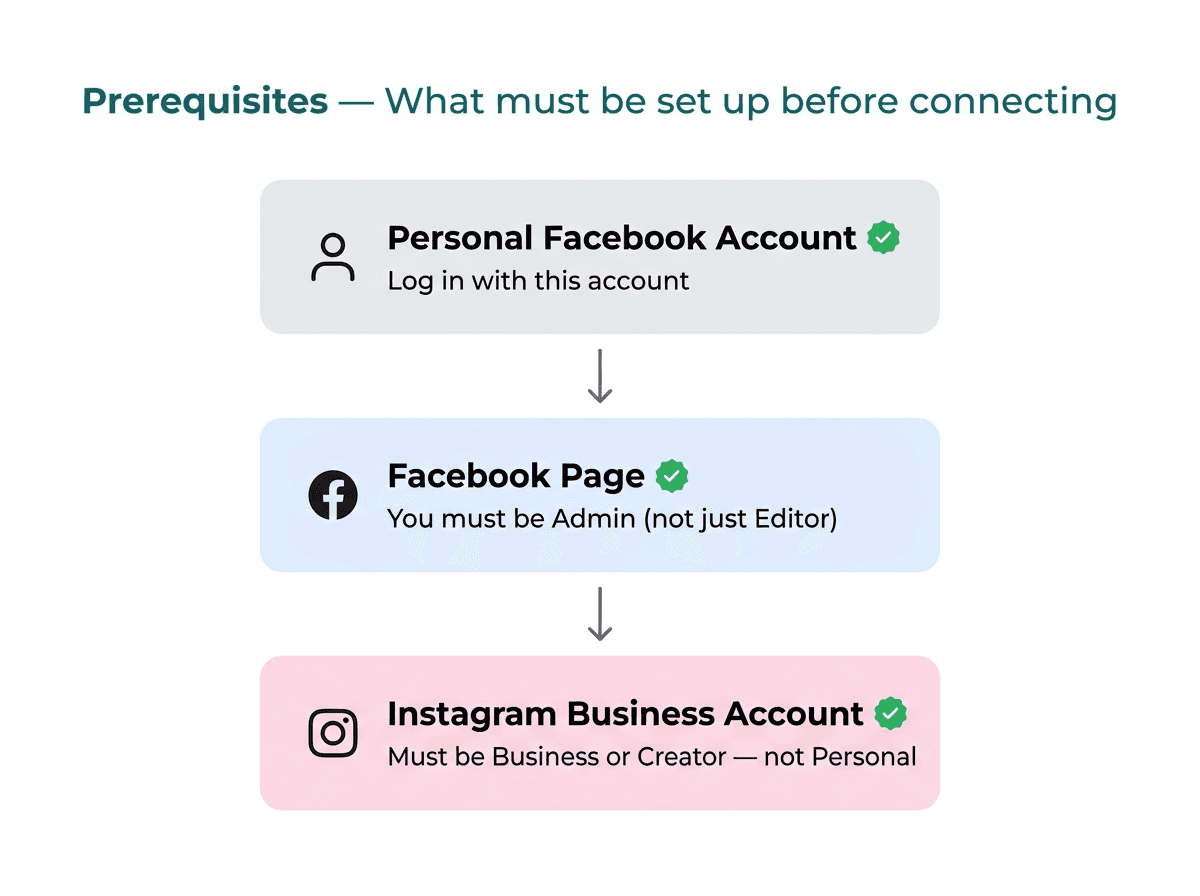
The three-layer Meta account structure all vacation rental hosts need to configure correctly
Layer 1: Your Personal Facebook Account
This is your login. It's how you authenticate with any automation tool — you sign in with your personal Facebook account, and Facebook checks what Pages you manage and what permissions you've been granted. The personal account itself is never used for posting; it's just the key that unlocks access to everything else.
Layer 2: Your Facebook Page
A Facebook Page is the public-facing presence for your rental. It's separate from your personal profile — think of it like a business entity that you own. When automation tools post to Facebook, they post to your Page, not to your personal timeline.
Your personal account must have the Admin role on the Page — not Editor, not Analyst, not Moderator. The Instagram Graph API and most automation tools require Admin-level access to operate.
Layer 3: Your Instagram Business Account
Instagram has three account types: Personal, Creator, and Business. Meta's publishing API — the system that automation tools use to post on your behalf — only works with Creator or Business accounts. Personal Instagram accounts cannot receive automated posts, full stop.
Additionally, your Instagram account must be linked to your Facebook Page, not just to your personal Facebook profile. This connection is what allows the Facebook API to reach your Instagram account at all.
How These Three Layers Connect
The flow that automation tools use looks like this:
- 1You authenticate with your personal Facebook account via OAuth
- 2Facebook returns a list of Pages where your account has Admin access
- 3You select your vacation rental Page — the tool stores a Page Access Token
- 4Facebook looks up which Instagram Business account is linked to that Page
- 5The tool now has a pathway to post to both Facebook and Instagram
If any link in that chain is broken — wrong account type, wrong role, Instagram not linked to a Page — the tool either can't find your accounts at all, or connects but silently fails when it tries to post.
Step-by-Step Setup Guide
Work through these steps in order. Each one is a prerequisite for the next. If you've already done some of them, use the checklist to confirm the configuration is correct before moving on.
Create your Facebook Page (if you don't have one)
Go to facebook.com/pages/create. Select Business or brand. Name the Page after your property or rental business — for example, "Sunset Shores Cabin" or "Blue Ridge Getaway." Upload a cover photo and profile photo of your property.
If you already have a Page, skip to Step 2 and verify your role.
Confirm your Admin role on the Page
Go to your Page → click Manage → Page settings → Page roles (or Manage permissions in the New Pages Experience). Your personal account should appear with the Admin role.
If you only have Editor or another role, you'll need to have the current Admin add you as Admin, or create a new Page where your account is the original creator (automatically Admin).
Switch Instagram to a Business or Creator account
Open the Instagram app → tap your profile picture (bottom right) → tap the menu (☰) → Settings and privacy → Account type and tools → Switch to professional account.
Select Business (recommended for vacation rentals, gets you analytics and contact buttons) or Creator (both work for automation). Follow the setup prompts.
Link Instagram to your Facebook Page
In Instagram → Settings and privacy → Account → Linked accounts → Facebook. Log in with your personal Facebook account and select your vacation rental Page — not your personal profile.
This step is missed more often than any other. Even if you've connected Instagram to Facebook before, confirm it's linked to your Page, not your personal timeline.
Connect your automation tool and grant all permissions
In your automation tool, initiate the Facebook connection (usually via an OAuth popup). When asked which Pages to connect, make sure your vacation rental Page is checked.
On the permissions screen, Meta will show each permission as an optional toggle. Leave all of them on. Turning off any permission — even accidentally — will cause the tool to fail silently when it tries to post. If you denied any permissions, you'll need to disconnect and reconnect to reset them.
If Your Page Is in Meta Business Manager
Meta Business Manager (now called Meta Business Suite) lets agencies and larger operations manage multiple Pages under a single portfolio. Many vacation rental hosts end up here if they hired a social media manager, ran ads through an agency, or set up an "official" business presence.
The problem: Meta's API only surfaces Pages where your personal account has a direct Admin role on the Page itself. Having access through a Business Portfolio — even with full admin rights in Business Manager — is not the same thing and won't make the Page appear in automation tools after OAuth.
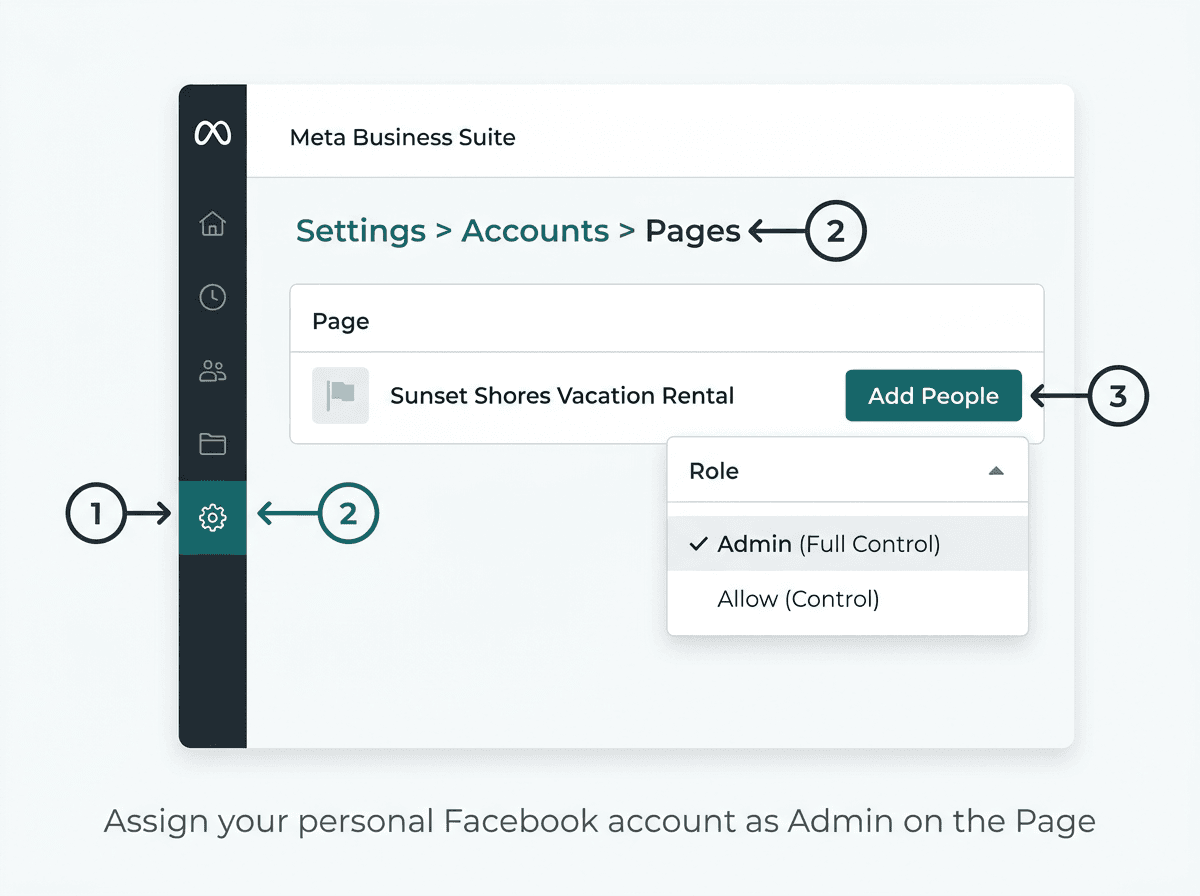
The navigation path in Meta Business Suite to add your personal account as Page Admin
The Fix
You need to add your personal Facebook account as a direct Admin on the Page inside Business Manager:
- 1Go to business.facebook.com and log in
- 2In the left menu, click Settings (gear icon at the bottom left)
- 3Click Accounts → Pages, then find your vacation rental Page
- 4Click on the Page, then click Add People
- 5Search for your personal Facebook account and assign it the Full Control (Admin) role
- 6Go back to your automation tool → disconnect Facebook → reconnect. Your Page should now appear
Choosing a Social Media Automation Tool
Once your accounts are correctly configured, any tool that connects via Facebook OAuth can post to your Page and Instagram account. The right tool for you depends on what you're trying to automate.
General social schedulers (Buffer, Hootsuite, Later)
Good for batch-scheduling content you've already created. You write the post, upload the image, set a time. These tools don't connect to your PMS or know when new reviews arrive — you're still doing all the creative work yourself.
STR-specific tools (e.g., Y'alloha)
Built for vacation rental hosts. Connect to your property management system (Hospitable, Airbnb), automatically detect new 5-star reviews, generate branded graphics using your property photos, write AI-powered captions, and publish to Facebook and Instagram without any manual steps. The only thing you do is approve the post before it goes live.
What Any Good Automation Tool Needs From You
- Facebook Page Admin access (via OAuth with your personal account)
- pages_show_list permission — so it can see which Pages you manage
- pages_manage_posts permission — so it can publish to your Page
- instagram_content_publish permission — so it can publish to your Instagram feed
- An Instagram Business or Creator account linked to your Facebook Page
Every tool that posts to Facebook and Instagram needs these exact permissions. If a tool asks for them, that's normal — not a red flag. If you deny any of them during setup, the tool will connect but fail silently when it tries to post.
Common Mistakes Vacation Rental Hosts Make
These are the issues that show up most often in support queues for social media automation tools. All of them are fixable in under five minutes.
Using a personal profile instead of a Facebook Page
Fix: Meta's API does not allow automation tools to post to personal profiles — only to Pages. Create a Page for your rental at facebook.com/pages/create if you don't have one.
Instagram linked to personal Facebook profile, not a Page
Fix: This is the most commonly missed step. Go to Instagram → Settings → Linked accounts → Facebook and select your vacation rental Page, not your personal profile.
Instagram account is still set to Personal
Fix: Personal Instagram accounts can't be published to via API. Go to Instagram → Settings → Account type and tools → Switch to professional account → Business or Creator.
Accidentally denied permissions during OAuth
Fix: Meta shows every permission as an optional toggle. If anything was turned off, the fix is to disconnect and reconnect the integration — this time leaving all toggles on.
Page is in Business Manager but personal account isn't direct Admin
Fix: Business Manager portfolio access isn't the same as being Admin on the Page. In Business Manager → Settings → Pages → Add People, add your personal account with Full Control.
Connected an old or wrong Facebook account
Fix: The account used for OAuth must be Admin on your vacation rental Page. If you have multiple Facebook accounts, make sure you logged in with the right one when connecting your automation tool.

The correct path to link Instagram to your Facebook Page — the most commonly missed setup step
Frequently Asked Questions
Does my vacation rental need a Facebook Page, or can I use my personal profile?
You need a Facebook Page, not a personal profile. Meta's publishing API only works with Pages — automation tools cannot post to personal profiles. A Page also gives you analytics, ad targeting, and the ability to add team members, which you'll want as your rental business grows.
Why does Instagram need to be linked to a Facebook Page for automation to work?
Meta requires Instagram Business and Creator accounts to be connected to a Facebook Page to access the Instagram Graph API, which is the only way third-party tools can publish posts on your behalf. Without this link, automation tools have no pathway to reach your Instagram account.
What happens if my Facebook Page is in Business Manager?
If your Page is owned by a Business Portfolio, it may not appear in automation tools after OAuth. The fix is to add your personal account as Admin directly on the Page inside Business Manager: go to business.facebook.com → Settings → Accounts → Pages → find your Page → Add People → assign Full Control (Admin).
Can I automate vacation rental social media posts without a large following?
Yes. Even with a small audience, consistently posting 5-star guest reviews builds credibility with everyone who visits your Page or profile — including people referred by past guests. Every review post doubles as an ad for direct bookings. Automation keeps you consistent without requiring you to spend time creating content.
What social media automation tools are available for vacation rental hosts?
Options range from general social schedulers (Buffer, Hootsuite, Later) to STR-specific tools. Y'alloha is purpose-built for vacation rental hosts: it connects to Hospitable, detects new 5-star reviews, generates branded graphics, writes AI captions, and publishes to Facebook and Instagram automatically — including your direct booking link in every caption.
How long does it take to set up social media automation for a vacation rental?
If your Facebook Page and Instagram account are already correctly configured, connecting an automation tool takes 5–10 minutes. If you need to switch Instagram to a Business account or link it to a Facebook Page first, budget 15–20 minutes total. After setup, the system runs automatically — you only spend a few seconds approving each post before it goes live.
Ready to automate your vacation rental social media?
Y'alloha connects to your PMS, detects 5-star reviews, and posts them to Facebook and Instagram — automatically.
- Takes 5 minutes to connect — no technical setup required
- Every post includes your direct booking URL
- Works with Hospitable and Airbnb reviews
- Free plan available — no credit card required